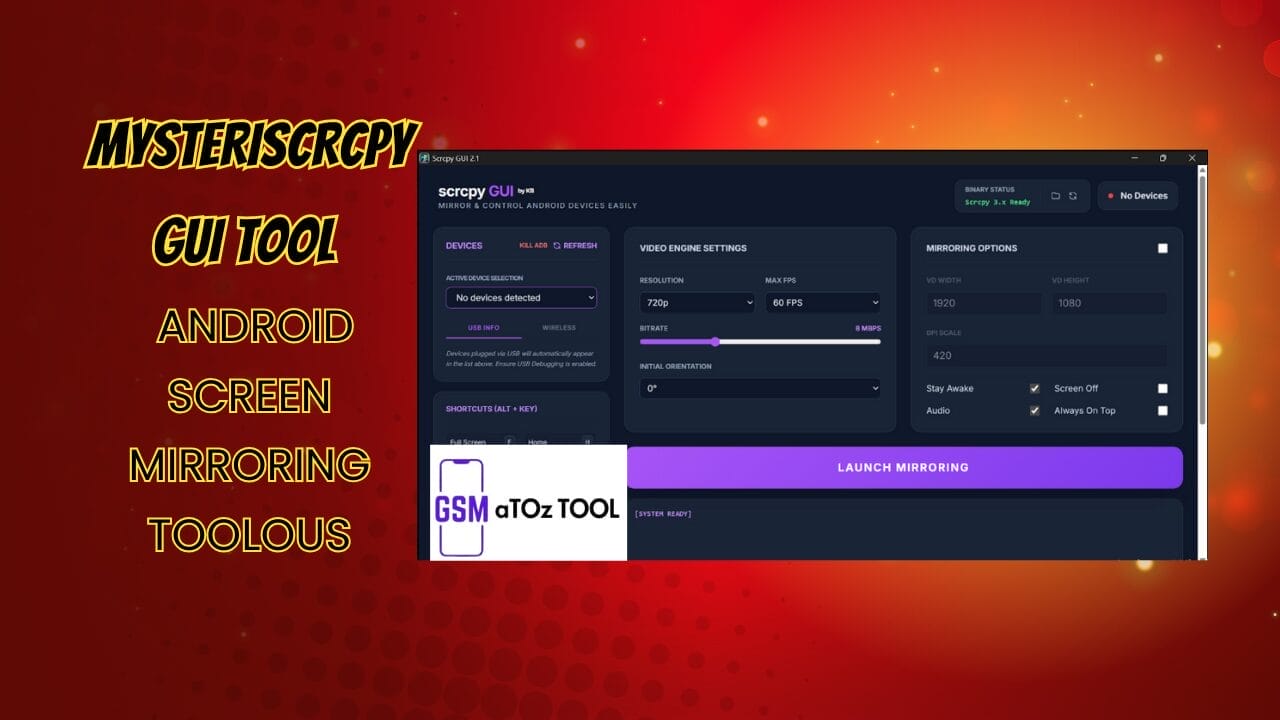
Scrcpy gui tool v2. 1 android screen mirroring tool
Sometimes You Just Want To See Your Android Phone On Your Pc Screen Without Dealing With Confusing Commands Or Tools That Don’t Even Detect Your Device. It Can Be Frustrating When Mirroring Feels Harder Than It Should Be. That’s Why Many Users Start Looking For Something Simple Clean And Reliable This Is Where The Scrcpy Gui Tool Comes Into Focus.
In This Post You’ll Learn What The Scrcpy Gui Tool Actually Offers And How Its Different Panels And Settings Help Make Screen Mirroring Easier. We’ll Go Through Device Options Video Settings Mirroring Controls And Shortcuts In A Clear And Beginner-friendly Way. By The End You’ll Feel Confident Using The Tool And Know Exactly What To Expect.
Also Read:
Whatsaap Groups Link:
- GSM ATOZ TOOLS SOFTWAR:: Group Link Join
- GSM ATOZ TOOLS Tech::Group Link Join
- GSM ATOZ TOOLS EXPERTS::Group Link Join
- WORLD OF GSM ATOZ TOOLS::Group Link Join
- GSM ATOZ TOOLS MOBILE SOFTWARE::Group Link Join
Join Us On Telegram
- Telegram Channel: GSM ATOZ TOOLS::Link Join
- Telegram Group Link: GSM ATOZ TOOLS:: Link Join
What Is Scrcpy Gui Tool?
If You’ve Ever Wanted To See Your Android Phone On A Bigger Screen Without Messy Commands.this Tool Feels Like A Relief. The Scrcpy Gui Tool Gives You A Clean Graphical Interface So You Can Mirror And Control Your Device Without Touching The Command Line. It’s Built For People Who Want Things To Just Work.
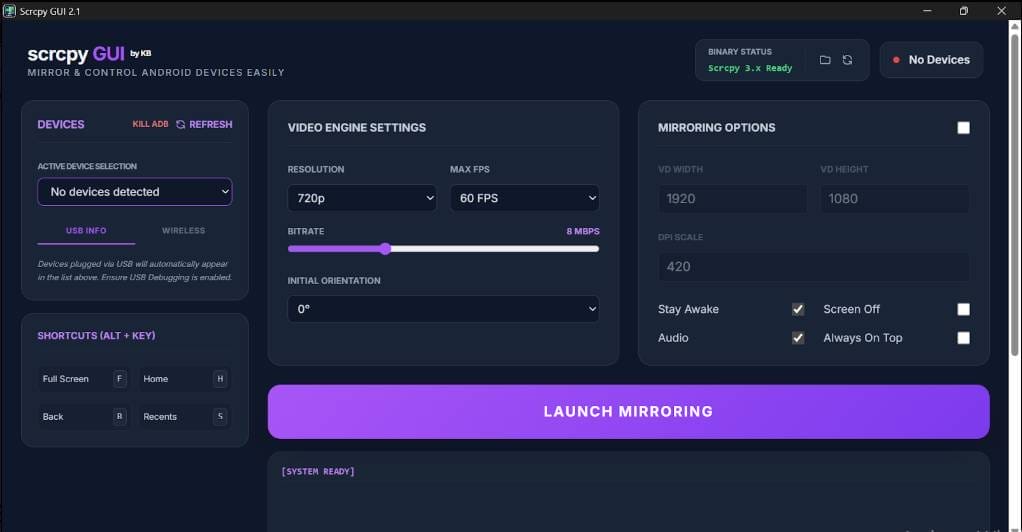
Inside The Interface You’ll Notice A Clear Devices Panel That Shows Active Device Selection Through A Dropdown. It Also Displays Helpful Signals Like The No Devices Detected Status Plus Quick Controls Such As The Kill Adb Button And Refresh Button. You Can Connect Using The Usb Info Tab Or Switch To The Wireless Tab When Needed.
Why Use Scrcpy Gui Tool For Android Mirroring?
Most Screen Mirroring Tools Feel Either Too Basic Or Overly Technical. This One Sits Nicely In The Middle Giving You Control Without Confusion. When Your Phone Connects The System Ready Status And Binary Status (scrcpy 3.x Ready) Give Instant Confidence That Everything Is Set Up Correctly.
Another Big Win Is How Fast It Is To Start. You Don’t Waste Time Guessing What To Press Just Check Your Device Confirm The Connection And Hit The Launch Mirroring Button. Small Touches Like Device Indicators And Simple Layout Make The Whole Experience Smoother Especially If You Mirror Your Screen Often.
Video Engine Settings Overview
Video Quality Is Where This Tool Quietly Shines. You Can Adjust Resolution To 720p Set Max Fps To 60 Fps And Fine Tune Performance Using The Bitrate Slider At 8mbps. These Settings Help Balance Smooth Playback With Clear Visuals Depending On Your Pc And Phone.
You Also Get Control Over Initial Orientation Plus Display Details Like Vd Width (1920) Vd Height (1080) And Dpi Scale (420). Options Such As Stay Awake Screen Off Audio And Always On Top Give You Flexibility During Long Sessions. For Example You Can Keep The Phone Screen Off While Still Viewing Everything On Your Pc.
Features
Devices Panel
- Active Device Selection (Dropdown)
- No Devices Detected Status
- Kill ADB Button
- Refresh Button
- USB Info Tab
- Wireless Tab
Video Engine Settings
- Resolution (720p)
- Max FPS (60 FPS)
- Bitrate Slider (8 Mbps)
- Initial Orientation (0°)
Mirroring Options
- VD Width (1920)
- VD Height (1080)
- DPI Scale (420)
- Stay Awake (Checkbox)
- Screen Off (Checkbox)
- Audio (Checkbox)
- Always On Top (Checkbox)
Shortcuts (Alt + Key)
- Full Screen (F)
- Home (H)
- Back (B)
- Recents (S)
System & Status
- Binary Status: Scrcpy 3.x Ready
- No Devices Indicator
- System Ready Status
Main Action
- Launch Mirroring Button
How To Use It?
- First, Download The Tool.
- Extract The Rar File And Open The Folder.
- In File Content, You Can Find The Setup File By Simply Double-clicking.
- Run The Tool As Admin “Scrcpy Gui Tool“.
- The Tool Will Open On Your Pc Screen.
- Enjoy Using The Tool.
FAQ’s:
What is Scrcpy GUI Tool used for?
Scrcpy GUI Tool is used to mirror and control an Android device on a PC through a simple graphical interface.It removes the need for command-line usage and makes screen mirroring easy for beginners. You can use it for presentations app testing or daily phone control.
Does Scrcpy GUI Tool support wireless connection?
Yes the tool supports both USB and wireless connections. You can switch between them using the USB Info tab and Wireless tab. Wireless mirroring is useful when you want freedom from cables.
Why does the tool show “No Devices Detected” status?
This usually appears when USB debugging is not enabled on your Android device or the drivers are missing. Connecting the phone properly and clicking the Refresh button often fixes the issue. You can also restart ADB using the Kill ADB button.
Can I control video quality and performance settings?
Yes the Video Engine Settings allow you to adjust resolution max FPS bitrate and orientation. These options help you balance smooth performance with clear display quality based on your system’s power.
Are keyboard shortcuts available in Scrcpy GUI Tool?
Absolutely. The tool supports shortcuts like Alt + F for full screen Alt + H for home Alt + B for back and Alt + S for recent apps. These shortcuts make navigation faster and more comfortable during mirroring.
Final Thoughts
The Scrcpy Gui Tool Feels Thoughtfully Designed For Real Users Not Just Developers. Keyboard Shortcuts Like F For Full Screen H For Home B For Back And S For Recents Make Navigation Quick And Natural. Once You Get Used To Them Controlling Your Phone Feels Effortless.
Overall, This Tool Delivers Exactly What Most People Are Searching For Simple Android Screen Mirroring With Real Control. It Doesn’t Overload You With Options Yet It Gives Enough Power To Handle Daily Tasks Smoothly. If You Want A Reliable Way To Mirror And Manage Your Android Device This Setup Is Worth Your Time.
How To Download?
- Visit The Gsmatoz Tools Website Of The Tool.
- Find The Download Page. Don’t Click The Button, And Click Only The (Download Link)
- Below Buttons Are Advertisements.Please Use The Download Links Above.
- Once The Download Is Complete, Locate The Downloaded File On Your Device.
- Tap On The File To Begin The Installation Process.
- Follow The On-screen Instructions To Complete The Installation.
Scrcpy Gui Tool V2.1